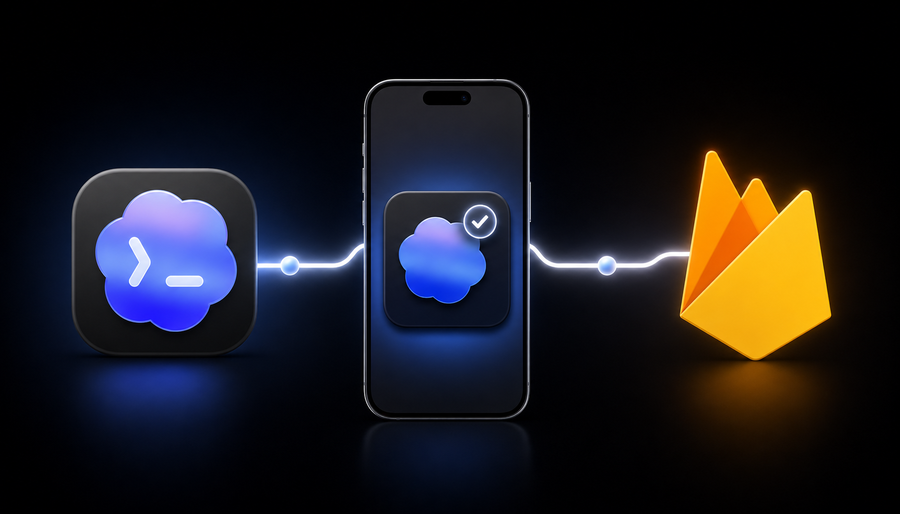
In 2026, I found a practical way to develop iOS apps when I’m away from my computer. I can describe a change from my iPhone, let Codex implement it on my Mac, install the new build, and send feedback—all without sitting down at my Mac.
The recipe is simple: Codex Remote + Fastlane + Firebase App Distribution.
How the workflow works
My Mac remains the development host. It has the repository, Xcode, signing credentials, and all the tools Codex needs. I use the ChatGPT app on my iPhone to control the session.
The loop looks like this:
- I open Remote in the ChatGPT app and select my Mac.
- I open the project chat and dictate the change I want.
- Codex edits the project, runs the relevant tests when I ask, and shows me the result.
- I ask it to run my Fastlane distribution lane.
- I install the build from Firebase App Distribution and test it on my iPhone.
- I describe what should change next and repeat the loop.
Commands still run on my Mac, using its files and credentials. That is useful because I don’t need to recreate my local setup somewhere else.
One-time setup
1. Connect the iPhone to the Mac
Install the latest ChatGPT apps on both devices and sign in with the same account and workspace. On the Mac, choose Set up Remote in the sidebar. Scan the QR code with the iPhone and finish the pairing flow in the ChatGPT app.
After pairing, open Settings → Connections → Control this Mac on the Mac and check that:
- Allow connections is enabled;
- the iPhone appears under Devices that can control this Mac;
- Keep this Mac awake is enabled if you want to connect while you are away.
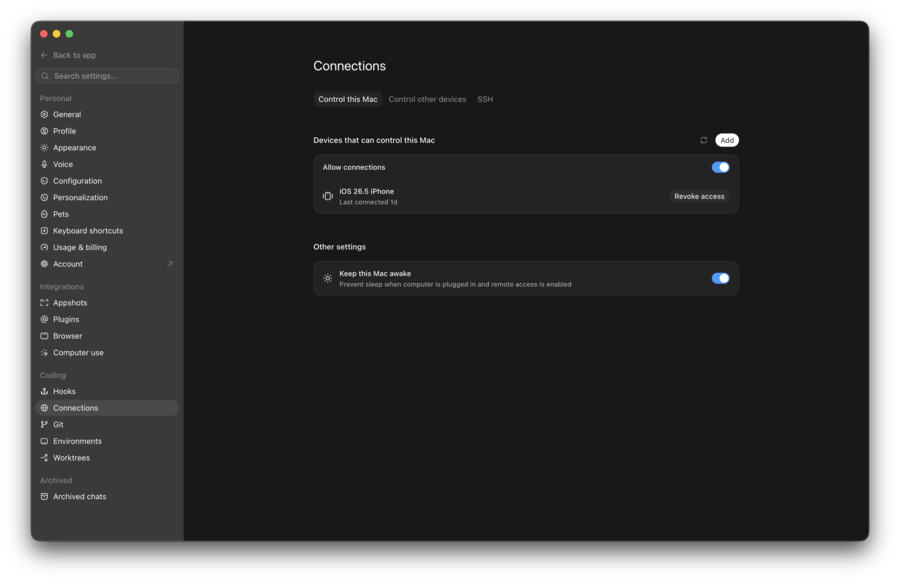
The Mac must remain powered, online, and running the ChatGPT desktop app. For a MacBook, keep it plugged in with the lid open. OpenAI’s Remote connections guide also notes that a closed MacBook lid requires an external display.
2. Prepare Firebase App Distribution
Create or open a Firebase project, register the iOS app, and enable App Distribution. Add your own email as a tester. The first invitation must be opened in Safari on the iPhone.
For an Ad Hoc build, Firebase asks you to install a profile that registers the iPhone’s UDID. After the device is registered, update the app’s provisioning profile so the next IPA includes it. This is only needed once per device and provisioning setup.
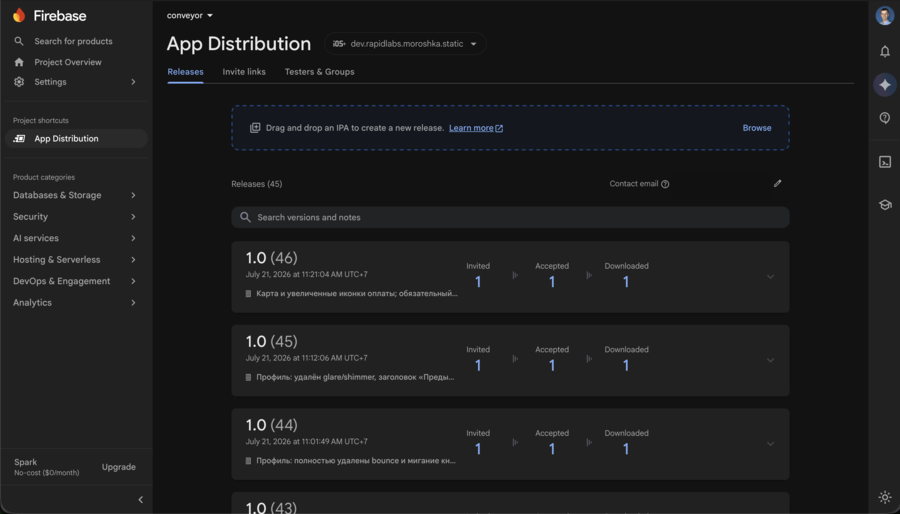
Firebase provides an App Distribution web clip where I can see and install every available build. The console shows whether a tester was invited, accepted the invitation, and downloaded each release.
3. Add a Fastlane distribution lane
I use Fastlane because the entire build and upload process becomes one command. Install Fastlane, then add the Firebase App Distribution plugin from the project directory:
fastlane add_plugin firebase_app_distribution
Authenticate with the Firebase CLI or a service account. Keep project-specific values and credentials in environment variables instead of committing them to the repository.
A minimal lane looks like this:
platform :ios do
  desc "Build and distribute an internal test release"
  lane :distribute do |options|
    build_ios_app(
      scheme: "YourApp",
      export_method: "ad-hoc"
    )

    firebase_app_distribution(
      app: ENV.fetch("FIREBASE_APP_ID"),
      groups: "internal-testers",
      release_notes: options[:notes] || "Remote test build"
    )
  end
end
Replace the scheme and tester group with values from your project. The Firebase plugin can find the IPA produced by build_ios_app, upload it, attach release notes, and notify testers. The complete list of authentication and lane options is in Firebase’s Fastlane setup guide.
I can now tell Codex:
Run the iOS distribution lane with release notes summarizing this change. Stop and show me any signing or upload error.
Codex runs the lane on the Mac and reports the result back to the phone.
What remote development feels like
Voice input is especially convenient for small, well-defined changes. I can ask Codex to adjust a layout, fix a bug, or add a test while I’m away from my computer.
The final step still matters: I install the app and use it like a real user. A passing test suite cannot tell me whether an animation feels wrong, a button is hard to tap, or a screen needs better spacing. I send that feedback to the same chat, and Codex starts the next iteration with the full context.
Practical limitations
This workflow does not remove the normal requirements of iOS development:
- the Mac still needs Xcode, dependencies, and valid signing credentials;
- the host must stay awake and connected;
- device registration and provisioning must be correct for Ad Hoc distribution;
- approvals and sandbox restrictions still apply to remote sessions;
- large architectural changes are easier to review later from a full-size screen.
It works best for focused iterations, not as an excuse to skip code review or testing.
Conclusion
The useful part is that I can complete the whole feedback loop from a phone: explain the change, review the result, install a real build, test it, and iterate.